Navigation
EdWard makes it easy to manage your timesheets across different pay periods. Whether you need to review past timesheets or start logging hours for a new period, the built-in timesheet navigation controls allow you to quickly move between pay cycles.
Using the Timesheet Selector to Switch Between Pay Periods
At the top of the My Timesheet page and Dashboard, you will see a calendar control that lets you navigate between different pay periods.
How to Move Between Timesheets
- Click on the left (◀) or right (▶) arrows to move backward or forward in time. • This will shift your timesheet view based on your weekly, fortnightly, or monthly pay cycle. • Moving forward will create a new timesheet entry for the upcoming period. • Allow a few seconds for the new timesheet to load before adding entries.

Quickly Jump to a Specific Pay Period
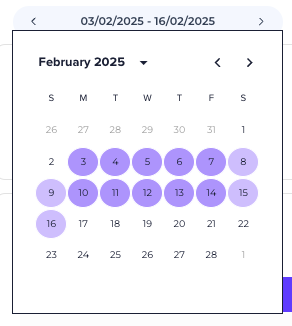
If you need to jump to a specific timesheet without scrolling, you can use the timesheet selector to open a calendar view.
How to Use the Calendar Selector
- Click on the pay period date range at the top of the page.
- A calendar pop-up will appear, showing different months.
- Scroll between months to find the correct period.
- Click on the desired pay cycle to switch to that timesheet.